How to buy a train ticket
Search
— Enter the desired route in the search on the Kupibilet homepage, select departure and arrival dates. If you are booking a one-way trip, click Return ticket not needed.
— Before starting the search, specify the number of passengers by age categories: 12 and older, 2-12 years, up to 2 years.
— Click Search and wait while Kupibilet finds all possible ticket options for this route.
Tickets will be sorted by price, starting from the lowest. To exclude flights from the search results and show only train tickets, use the Transport type filter and check the Train option.
If you have specific preferences for the carrier, departure or arrival time, trip duration, etc., use other filters on the right side of the page.
— Select a ticket and click Buy. After that, the order creation process will begin.
Please note: currently, Kupibilet does not offer the purchase of train tickets to Kaliningrad, abroad, or for commuter trains. More details in this article.
Booking
— On the «Booking» page, double-check all route details. Below, enter your contact information (email and phone number) and fill in passenger data: citizenship, document type, number and series, expiration date (if applicable), full name, date of birth, and gender. Please note: for train tickets, full names are entered in Cyrillic. If you are booking train tickets using a foreign passport, the data should be entered in Latin characters: for correct spelling of the patronymic, we recommend reviewing the transliteration rules in this article.
— After filling in the data, proceed to select seats for each passenger in the order. This is done by clicking the Select seats button in the corresponding block.

— Depending on the train you selected, you may be able to choose parameters: carriage type, train floor, carriage number. The number of available seats in each carriage is indicated below its number.
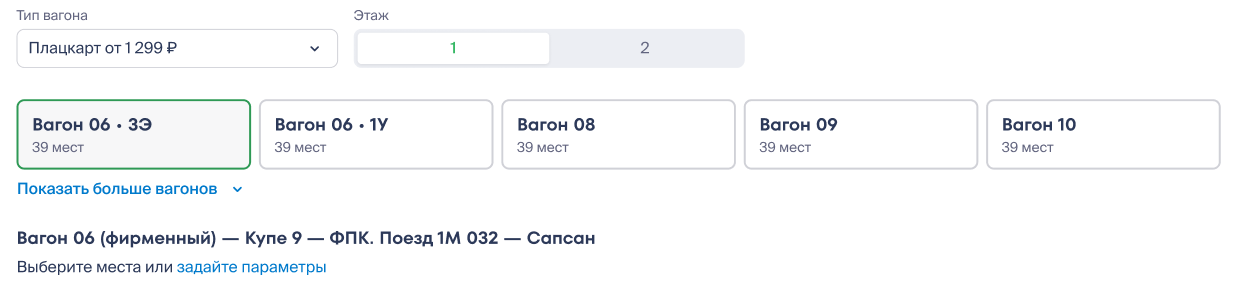
You can select seats for each passenger manually by clicking on the desired seats on the seat map, or use passenger distribution by parameters.
Selecting seats on the map
Available seats on the map are marked in white. Hover your cursor to see the seat price.
To select a seat for a specific passenger, first click on their card — it will be highlighted with a green frame.
When selecting seats, pay attention to the pop-up tips. Sometimes, in the carriage you selected, there may be special seats for which special purchase rules apply. For example:
Gender-specific compartment — can be male, female, or mixed. The compartment type is determined by the first passenger to occupy a seat in that compartment;
Negotiation compartment — can only be purchased entirely;
Seats for passengers with children, mother and child seats, seats for passengers with animals
etc.
When seats are selected, each passenger has the option to choose a fare. You can keep the default fares or change them if possible for your trip. We have described the rules and discounts for each train fare in detail in the article Fares.
Confirm the selected seats by clicking the Save selection button to proceed to ticket payment.
Distribution by parameters
If you have preferences for seat location, you can specify them, and our system will automatically «seat» passengers in the desired places in the order. To do this, fill in the corresponding fields and click Save selection.
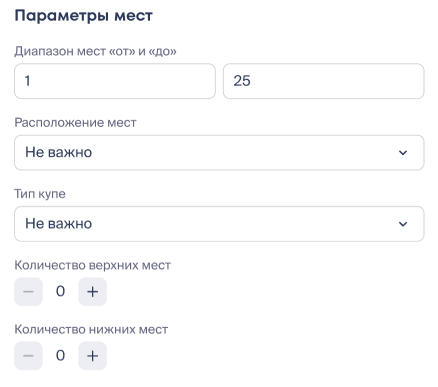
Please note that when distributing passengers by parameters, the exact cost will only be known when you proceed to the «Payment» page, once specific seats are assigned to each passenger.
— Once all data is filled in and seats are selected for all passengers, close the seat selection window and click Continue to proceed to the «Payment» page.
Payment
— At this stage, you can select necessary additional services and insurance.
You need to proceed with payment immediately: Kupibilet does not offer a preliminary ticket booking service without payment. If you change your mind about buying a ticket, simply close the page at this stage, before entering bank card details — and the order will be canceled automatically.
— Enter your bank card details or use saved data if you previously added them to your Personal Account.
— The Total shows the final price, including all fares, discounts, and additional services. Make sure everything is correct and click Pay for ticket.
— After the payment is processed, the page «All done! Your ticket has been paid» will open, and an email with your itinerary receipt will be sent to the email address you provided.
Please make sure you receive this email! If it's not in your Inbox or Spam folders, please contact us as soon as possible to clarify the status of your order and receive your ticket.